
Your home on a phone: Manager and Technician
On a phone, Solmex opens one of two homes. Manager mode shows how the work is going; Technician mode shows your next job and four big buttons.
When you open Solmex on a phone, the first page is not the dashboard you see on a computer. It is a home made for a small screen, in one of two modes:
- Manager: how the work is going, and what needs a decision. For supervisors, planners and managers.
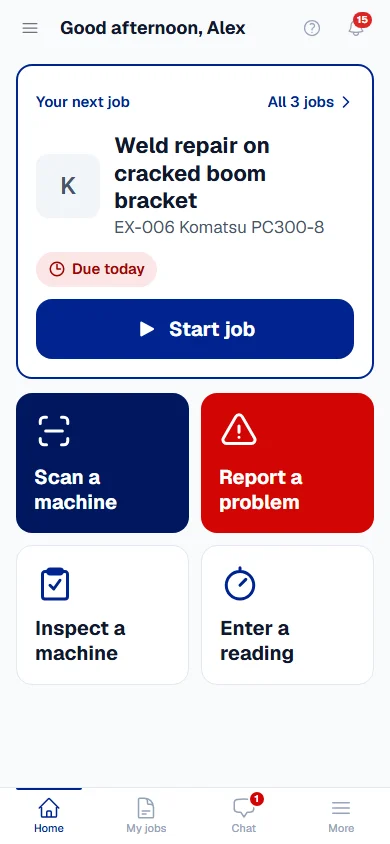
- Technician: your next job and four big buttons. For the people who do the work.
Nobody has to set this up. Solmex chooses the mode from your role, and you can change it from the user menu at any time.
Before you start
- Open your company's Solmex address in the phone's browser and sign in. See Use Solmex on a phone.
- You need no permission to open your home. Each part shows only what your role can do or read.
- On a work requester seat you have neither mode: your home is your own requests and jobs. See Raise a work request.
Technician mode
One screen, no scrolling, buttons large enough for a gloved hand.
- Your next job. The job to do now, with its machine and when it is due (Due today, Due tomorrow, or Late with the date it was due). A job you have already started comes first, then the one due soonest, then the most urgent. Press Start job, or Continue job for one you started. All 3 jobs (the number is yours) opens My jobs.
- Scan a machine. Point the camera at the machine's QR label. The machine's screen opens with three big buttons: Do an inspection, Report a problem and Enter a reading. See machine information is a link under them.
- Report a problem. Raise a work request in a minute: what is wrong, which machine, a photo.
- Inspect a machine. Scan the label, choose the checklist, and the inspection sheet opens with you as the inspector.
- Enter a reading. Scan the label, type the Operator name and the hour meter or odometer, and press Save. Both are saved as read now.
- A signature reminder. When a job waits for your signature, a yellow line says so. Press it to open My jobs.
The tab bar at the bottom shows Home, My jobs, Chat and More. Scan is not in the bar because it is the largest button on the page.
A button appears only when your role allows it. Without the right to raise work requests there is no Report a problem, for example. If only three buttons show, the last one fills the row.
Doing a job
- Press Start job on your home, or open the job from My jobs.
- Press Start the job when you begin the work.
- On a service, tick each step under Steps as you finish it. A step you cannot tick is saved as not done.
- Under What did you do?, write a few words, for example "changed the oil and the filter".
- If the job is a service, enter the hour meter or odometer reading when asked.
- If your company asks for a signature, press Sign your work and sign with your finger.
- Press Finish the job. You see Done. Thank you!, and your supervisor can see your work.
What you tick and type is kept on the phone until you finish, so a phone that locks or a page that reloads in the middle of a service does not lose your work.
Manager mode
Four answers, top to bottom, each one tap from the page behind it.
- Machines working now: how many of the machines on site are working, with a bar for standby, in maintenance, broken down and arriving.
- Act now: machines Broken down, machines whose Service overdue, and New requests waiting for a decision. Tap a figure to open that list. New requests appears only for people who decide on work requests.
- Last 7 days, against the 7 days before: Jobs finished, Jobs still open (and how many are blocked), Typical repair time and Fuel used.
- Down right now: the machines broken down, longest first, with how long each has been down and whether the repair has started.
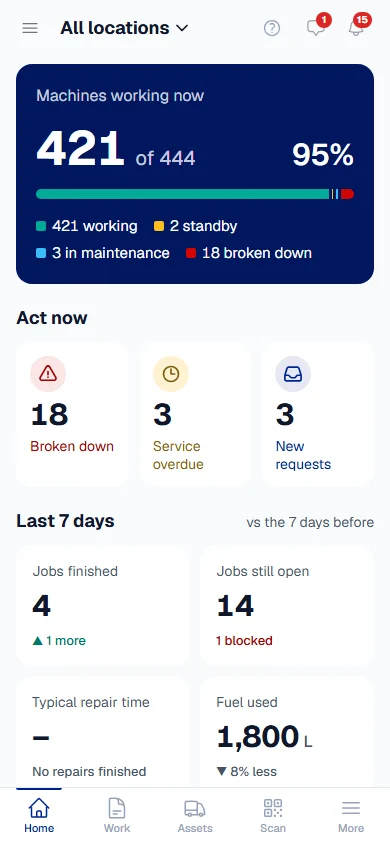
If your company works across several Locations, tap the Location name at the top to choose one, and every figure follows it. See Show one Location on the dashboard.
A part your role cannot read is left out, never shown as zero. For example, without access to fuel there is no Fuel used.
Switch between Manager and Technician
- Open More in the tab bar (or the menu at the top left), then the menu with your name at the bottom.
- Under Phone home, choose Manager or Technician.
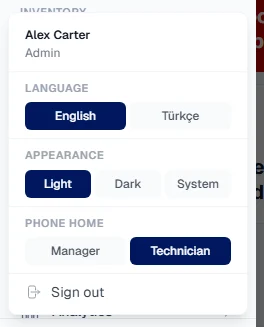
Your home changes at once. The choice is kept on that phone for your account only, so a supervisor who lends their phone to a technician, or two people sharing a tablet, each keep their own.
On a computer or tablet
From tablet width up, Solmex opens the full dashboard instead. See The dashboard.
Troubleshooting
| What you see | What to do |
|---|---|
| No jobs for you right now. | Nothing is assigned to you. When your supervisor gives you a job, it shows here. |
| A button you expect is missing | Your role does not allow it. Ask your administrator. See Roles and permissions. |
| No Phone home in the user menu | You are on a work requester seat, which has its own home. |
| The phone opens the wrong mode | Choose the other one under Phone home. The choice is per phone, so set it on each device you use. |
| The home page could not be loaded. (Manager mode) | Check the connection and press Try again. |