
Yardım MerkeziOrganizasyonu Yönetme
Bu makale henüz Türkçeye çevrilmedi. Aşağıda İngilizce sürümünü okuyabilirsiniz.
Leave requests and approvals
How leave is requested or logged, how an approver approves or rejects it, and where to see every leave record and who is away.
Leave reaches Solmex in two ways. An employee requests it themselves from My Workspace, and it waits for approval. Or someone in HR logs leave that has already been agreed, on the employee's profile. Either way it ends up on Leave Management, where approvers decide, and on the employee's balance.
Before you start
- Leave: Approve lets you approve and reject. It shows the Pending Approvals tab.
- Leave: Edit lets you log leave for an employee. Leave: View lets you read the records and the calendar.
- Set up leave types and entitlements first: see Leave types and entitlements.
How an employee requests leave
The employee opens My Workspace > My Leave, clicks Request leave, chooses the type and dates, and submits. The request is Pending until someone decides. While it is pending they can cancel it. See My Workspace.
Log leave for an employee
- Open the employee's profile and go to the Leave tab.
- Click + Log Leave.
- Choose the Leave Type, the Start Date and End Date, and add a Reason and a Supporting Document such as a sick note if you have one.
- Click Log Leave.
If you hold Leave: Approve and the leave is not your own, it is recorded as Approved straight away, because you are writing up something already agreed. Otherwise it is recorded as Pending and waits for an approver like any request.
Approve or reject requests
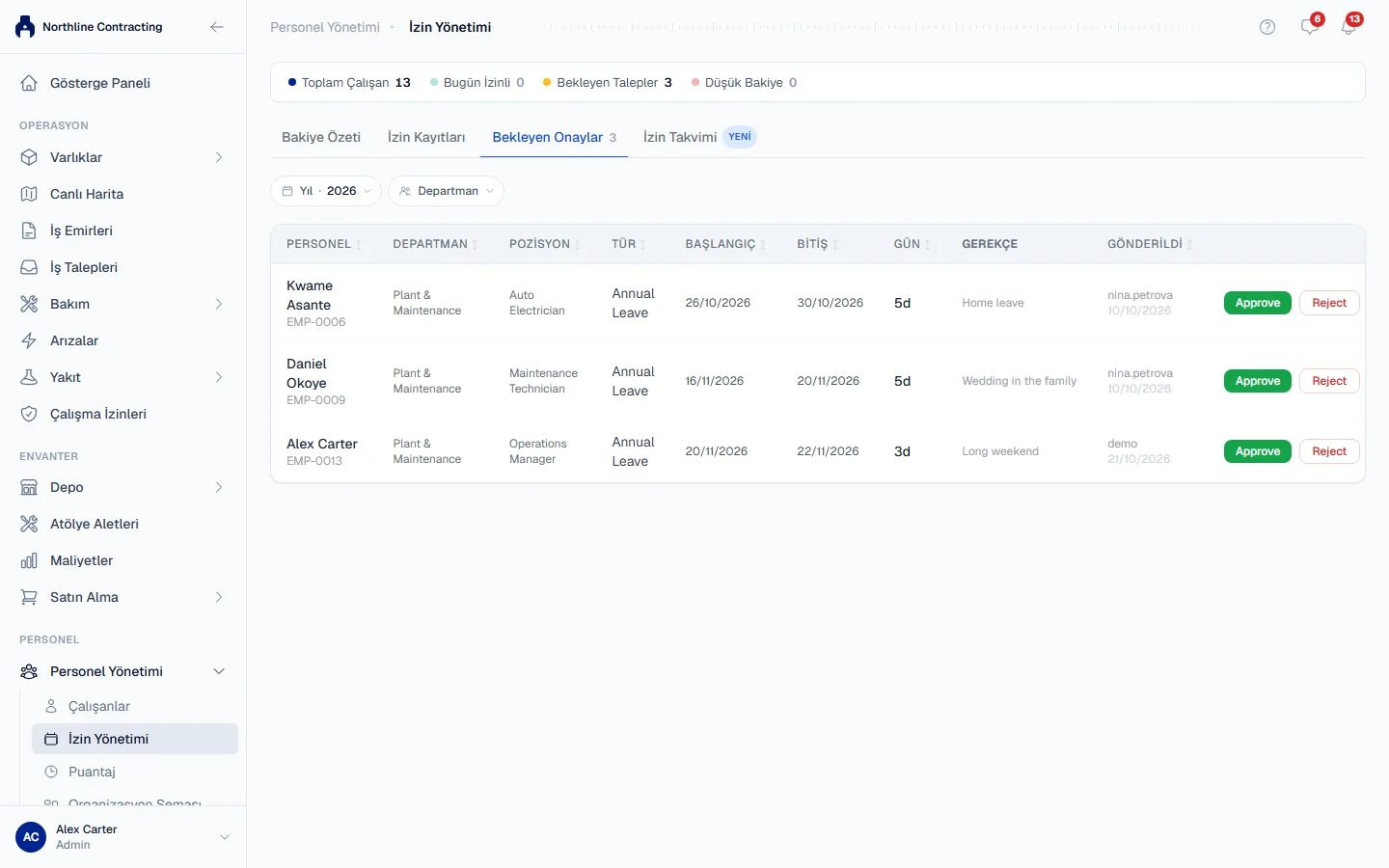
- Open Workforce > Leave Management and click the Pending Approvals tab. Its badge counts the requests waiting. The Pending Requests card at the top takes you there too.
- Each request shows the employee, department, position, leave type, start and end, the number of days, the reason and when it was submitted.
- Click Approve on a request, or Reject.
- When rejecting, you can add a Rejection Reason, then click Confirm Reject.
When nothing is left, the tab says "No pending leave requests. All caught up!"
To decide many at once, use the Leave Records tab: filter Status to Pending, tick the requests, and click Approve All Selected or Reject All Selected.
People who approve leave also see waiting requests under My Workspace > My Approvals, with a link to this page.
See every leave record
- The Leave Records tab lists all leave for the chosen Year, filterable by Department, Leave Type and Status (Pending, Approved, Rejected or Cancelled). The Excel button exports it, and on Balance Summary exports the balances.
- The Leave Calendar tab shows who is away on which days.
- The Balance Summary tab shows what everyone has left. See Leave types and entitlements.
Rules worth knowing
- You cannot approve or reject your own leave, whatever your role. Your own requests, and leave you log for yourself, always wait for someone else. A bulk approval skips them.
- Only a pending request can be decided. Once approved or rejected, it is not offered again.
- A rejection cannot be undone from this page. The employee's record shows Rejected; they can submit a new request.
- Approving leave does not fill in the timesheet. Mark the person as Leave on Daily Timesheets.
- Pending days already count against the balance, so the balance an approver sees is what will be left if they approve.
Troubleshooting
| What you see | What to do |
|---|---|
| "You cannot approve or reject your own leave request" | Ask another person with Leave: Approve. |
| "Only pending records can be approved or rejected" | Someone has already decided it. Reload the page. |
| No Pending Approvals tab | Your role lacks Leave: Approve. |
| "Approve failed." or "Reject failed." | Reload and try again. If it repeats, check your role. |