
Yardım MerkeziOrganizasyonu Yönetme
Bu makale henüz Türkçeye çevrilmedi. Aşağıda İngilizce sürümünü okuyabilirsiniz.
Record daily attendance
Take the day's roll call on the Daily Timesheets page: mark everyone present in one click, adjust the exceptions, record hours and overtime, and save.
The Daily Timesheets page is one day's attendance for your whole workforce on one screen. Whoever keeps the roll marks each person present, absent, on leave or off, with their hours and overtime, and saves once. Each employee can then see their own record in My Workspace.
Before you start
- Timesheets: View shows the page. Timesheets: Edit lets you record and save.
- Set the Default Working Hours per Day in Company Settings first. It is the number of hours Mark All Present fills in. See Company settings in depth.
- The page lists every employee except those who are Terminated or Planned to Join. Add your people first: see Add and manage employees.
Record a day
- In the sidebar, open Workforce > Timesheets. The page opens on today.
- To record another day, use the arrows beside the date, or click Today to come back.
- To work through one department at a time, choose it in the Department filter.
- Under Quick Actions, click Mark All Present. The button shows the hours it will use, such as Mark All Present (8h). Everyone on the list is set to Present with those hours.
- Change the exceptions one by one: pick the person's status and adjust their Hours and OT Hrs. Add a note if useful.
- To set a whole department at once, choose the department and a status beside Quick Actions, and click Apply.
- Click Save. The button counts how many people will be saved.
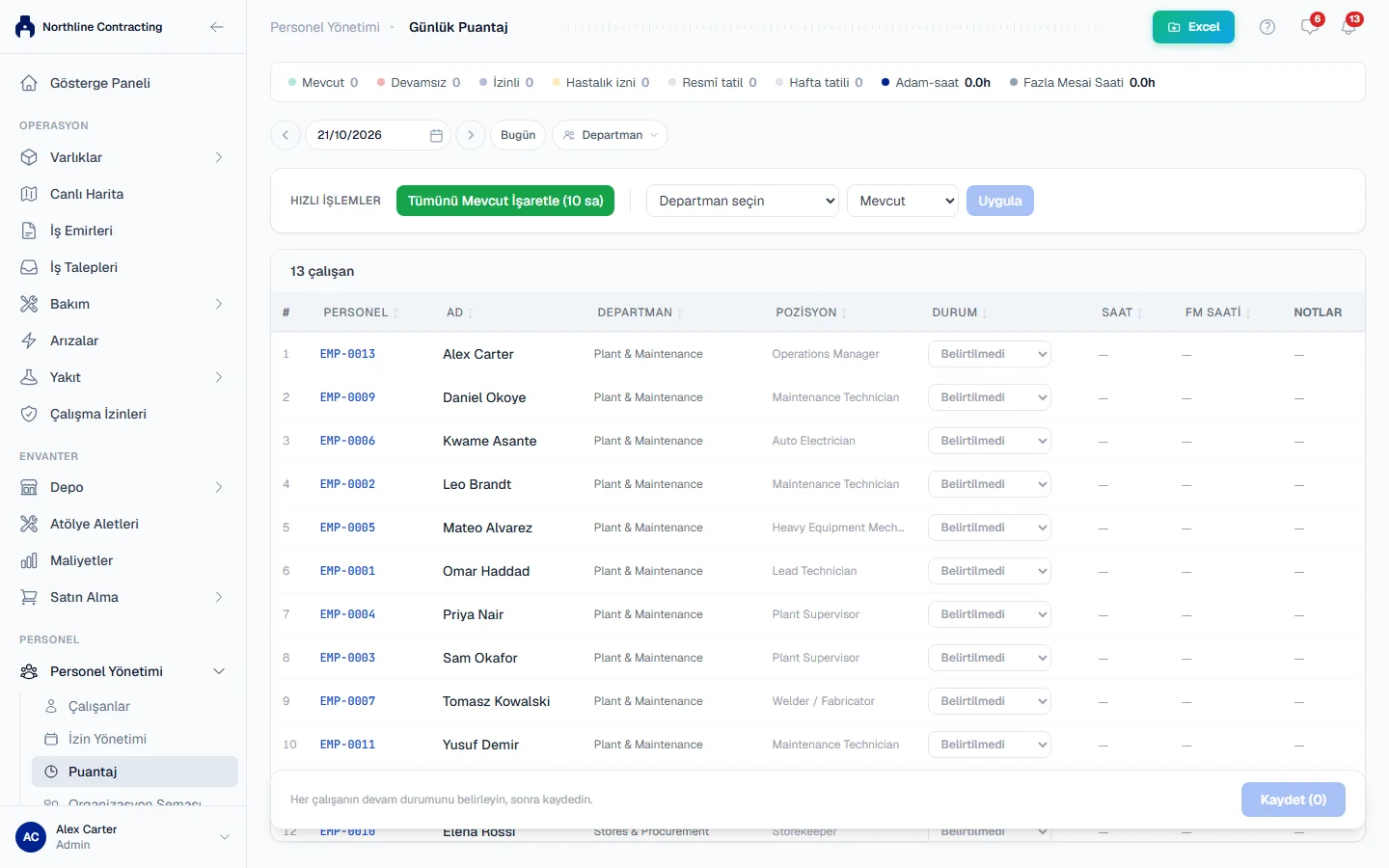
The statuses are Present, Absent, Leave, Sick leave, Holiday and Off day. The summary strip counts each one for the day, with the day's total Manhours and OT Hours.
On a phone
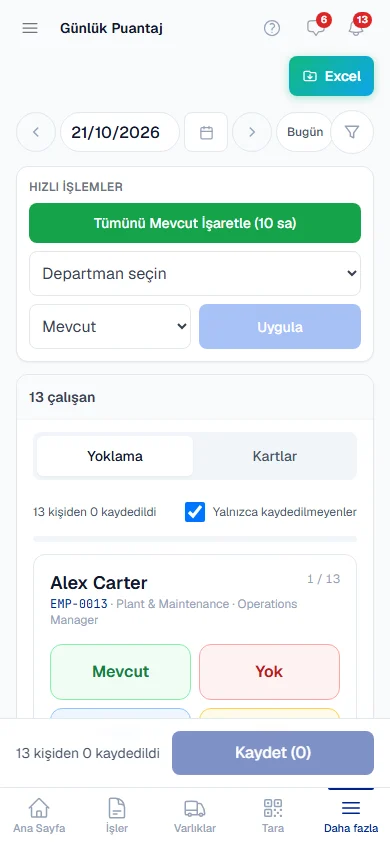
On a phone you can choose Roll-call, which shows one person at a time with large buttons: pick their status, adjust their hours and move on. Unrecorded only skips anyone already done, and the progress line counts "3 of 40 recorded". Or choose Cards to see everyone as a list. Save in the same way.
Correct one person's entry
Open the person's profile, go to the Timesheets tab and click Edit on the day. You can change the Hours Worked, Overtime Hours and Notes, or Delete the entry. You can also add a single day there.
What happens next
Saved entries appear on the employee's Timesheets tab and in their My Timesheets. Workforce > Timesheet Reports totals them by month.
Rules worth knowing
- Nothing is saved until you click Save. The page counts unsaved changes, so you can see when you have work to save.
- Saving the same day again updates it. Each person has one entry per day; re-saving replaces it rather than adding a second.
- Absent, Holiday and Off Day carry no hours. Choosing one of them sets the hours to zero.
- Mark All Present changes everyone on the list, including people you had already marked. Use it first, then set the exceptions.
- Approved leave is not filled in for you. Mark a person on leave as Leave yourself.
Troubleshooting
| What you see | What to do |
|---|---|
| "No active employees found." | No one matches the department filter, or everyone is terminated or planned to join. Clear the filter. |
| "Timesheet entry already exists for this date" (on a profile) | Edit the existing entry for that day instead of adding one. |
| A message that a timesheet cannot be logged for a terminated or planned employee | Change the person's status first, or leave them off. |
| Save All Changes is greyed out | Nobody on the list has a status yet. Set at least one. |